
What Is a Content Management System (CMS)? Plain-English Guide for Busy Owners

You can launch a professional website in a weekend, no code, no drama, just results. If you’ve ever stared at your homepage the way you stare at a closet before date night, full of options, nothing to wear, this guide is your stylist.
A content management system (CMS) helps you publish, design, and grow without hiring a full-time developer.
Here’s the headline truth: WordPress powers over 40% of the web, which tells you this isn’t just for tech folks, it’s for busy owners like you.
You’ll learn what a CMS is (in human speak), how it stacks up against website builders, which platforms fit small-business goals, what real budgets look like, and how to go live fast. Grab coffee; I’ll keep it crisp, glam, and completely doable.
Ready to create SEO content that actually ranks? Use our AI blog writer to turn your CMS into a traffic magnet, without the 2 a.m. writer’s block.
What Is a CMS? A Quick, Plain-English Introduction (No Tech Jargon)
A CMS is your website’s control room, write content, add pages, and update designs without touching code.
Think: drag, drop, publish, done. It keeps your words and images tidy behind the scenes, then serves them to visitors in a polished outfit.
The everyday magic is simple: you log into a dashboard, type or paste your content, click publish, and your site updates instantly.
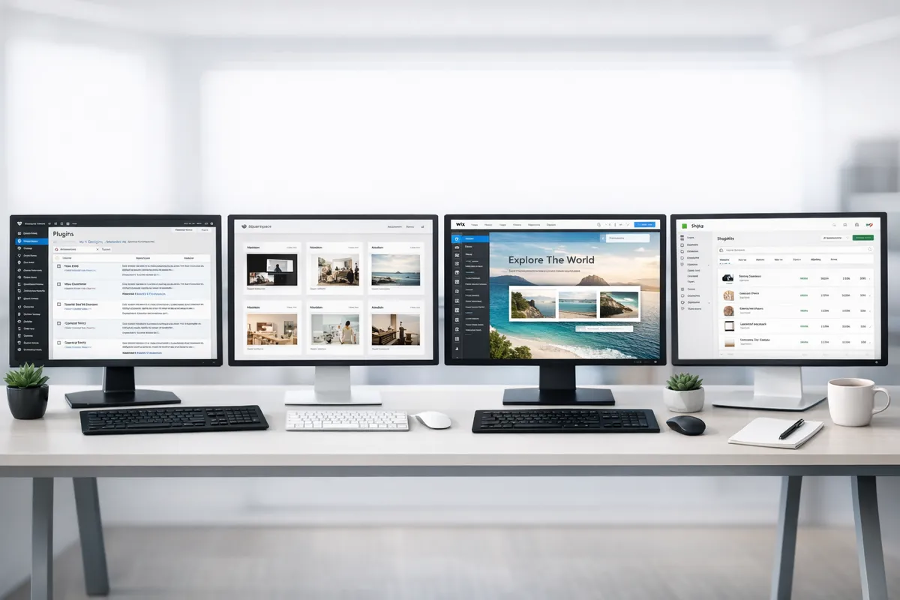
Tools like WordPress, Wix, Squarespace, and Shopify are all forms of CMS or include CMS features. For a neutral overview, see the plain-language entry on a content management system.
A quick mental model helps: the CMS is your closet system; pages and posts are outfits; themes are styling; plugins are accessories. Mix, match, and step out looking consistent.
What You’ll Actually Do With a CMS
You’ll create pages for services, a blog for traffic, and landing pages for campaigns. You’ll swap photos, change colors, and tweak navigation in minutes. The time savings add up fast when you’re wearing every hat.

CMS vs Website Builder for Small Business: What’s the Real Difference?
A website builder is an all-in-one kit; a CMS is a flexible closet you can reorganize forever. If you want speed and simplicity, builders shine. If you want control and long-term growth, CMS flexibility wins.
Here’s the quick read: Builders bundle hosting, templates, and security, great for launching fast with fewer decisions. CMS platforms (especially WordPress.org) are more customizable and portable as you scale.
In practice, many small businesses start with a builder for speed, then graduate to a CMS for integrations, editorial workflows, and unique designs. Choose based on your next 18 months, not just next week.
How to Choose in 60 Seconds
If you need a polished brochure site this week, pick a builder. If you’ll blog weekly, add lead magnets, or integrate tools, start on a CMS so you don’t outgrow your platform mid-season.
Core CMS Features Explained in Plain English (Pages, Posts, Themes, Plugins, Hosting)
Pages are your evergreens; posts are your newsfeed. Pages hold your services, About, and Contact. Posts power your blog, which fuels SEO and trust.
Themes control the look; plugins add features like forms, calendars, and SEO tools. Hosting is where your site “lives” online. WordPress sums up these building blocks clearly on its official webpage.
Here’s the practical snapshot for non-technical owners:
Pages vs. posts: Pages = stable info; posts = timely updates and content marketing.
Themes: Pre-made design “wardrobes” you can style to match your brand.
Plugins: Add-ons for SEO, speed, forms, and ecommerce—pick only what you need.
Hosting: Your site’s home; choose reliable, secure, and speedy.
Example That Saves Time
Create “/services” once, reuse a “call to action” block across all posts, and update it in one place. The consistency boost is chef’s kiss for busy teams.

Do I Need a Developer to Build a Website with a CMS?
Short answer: often no. Modern editors let you design headers, footers, and layouts visually. When you want “custom couture,” a developer speeds things up—but you can launch without one.
WordPress’s Site Editor lets you customize full-site templates with blocks and patterns, no CSS required. If you’re curious, glance at the official Site Editor guide to see how visual it’s become.
If you do hire help, think “mini engagements” for speed: a 5-hour brand tune-up, a 1-day landing page sprint, or a monthly care plan. Keep ownership of your logins and your content.
DIY vs. Delegation Rule of Thumb
If a task repeats monthly and drains your focus, outsource it. If it’s a one-time setup and you’re game to learn, DIY with a checklist.
Best CMS for Small Business: WordPress, Wix, Squarespace, and Shopify at a Glance
Pick for the business you’re building, not just the site you need today. WordPress (self-hosted) wins on flexibility. Wix and Squarespace win on speed-to-launch. Shopify wins on e-commerce depth.
Market share can hint at ecosystem health, plugins, templates, tutorials. See who’s leading in the latest CMS market share data. Use popularity as a tie-breaker, not the only factor.
For many owners, the hybrid path works: start with a builder, then migrate to WordPress when you need specialized features or unique workflows.
Quick Persona Fits
Service-led freelancers love Squarespace polish; local shops like Wix for simplicity; content-driven brands thrive on WordPress; product catalogs scale on Shopify.
How Much Does a CMS Cost per Month? Realistic Budgets and Hidden Fees
Expect $15–$75/month for most small sites; ecommerce runs higher. Your stack might include hosting, a domain, optional premium theme, and a few paid apps.
To benchmark ecommerce costs, scan official Shopify pricing. You’ll see plan tiers and transaction details, which help you compare “platform fees” vs. payment processing.
Typical small-site budget lines:
Domain: ~$12–$20/year
Hosting or platform plan: $10–$35/month
Premium add-ons: $0–$30/month (forms, SEO, backups)
Payment processing (stores): ~2.9% + $0.30 per transaction
One Smart Money Move
Avoid shiny-object plugin collections. Install fewer, higher-quality tools. Your speed and stability will thank you.
SEO-Friendly CMS for Beginners: What to Look For (and What to Avoid)
On-page control, clean URLs, fast pages, and easy indexing beat “SEO magic.” A good CMS lets you edit titles, meta descriptions, headings, image alt text, and redirects, without acrobatics.
Google’s official SEO Starter Guide is the north star for beginners, simple, current, trustworthy. Learn the basics once; apply them forever.
Make sure you check our SEO Starting Guide too.
Avoid themes that load 30 scripts you’ll never use. Pick lightweight designs, compress images, and enable caching. Real SEO is consistency, not gimmicks.
A 10-Minute SEO Ritual
Publish, add a clear H1 and meta description, compress images, and link the page from your nav or a related post. That’s sustainable SEO for busy weeks.

Design and Branding Made Easy: Themes, Templates, and No-Code Customization
Themes give you 80% of the look; your brand finishes the last 20%. Start with a solid template, then dial in colors, fonts, and spacing.
You can browse thousands of quality themes in the official WordPress Themes Directory. Choose a lightweight, accessibility-friendly theme and keep your brand assets handy.
Limit your palette and typography to stay consistent across pages. The goal is recognizable, scroll-stopping cohesion, without tinkering for days.
Pro Tip for Faster Launches
Lock your style guide first. With colors, fonts, and buttons set, the rest snaps into place.
Content Made Simple: How a CMS Helps You Publish Blogs, Services, and Landing Pages Fast
Blocks and patterns speed everything. Write once, reuse often, and never start from a blank page again.
The WordPress Block Editor shows how intuitive modern editing can be. Take a peek at the official Block Editor guide to see how sections, buttons, and forms become draggably delightful.
Create a “Services” page template, duplicate it for each offer, and tweak details. Consistency makes your brand feel established—and cuts build time by half.
The Reusable Block That Pays for Itself
Save a testimonial block and drop it on every key page. Social proof on repeat is an effortless win.

Ecommerce Made Simple: When to Choose Shopify vs WordPress + WooCommerce
Choose Shopify for turnkey commerce; choose WooCommerce for control. Shopify handles hosting, security, and checkout out of the box. WooCommerce (on WordPress) lets you fine-tune everything, from product types to integrations.
If you crave speed-to-market and built-in POS, Shopify shines. If you want full ownership, custom product logic, or unique checkout flows, WooCommerce is your flexible friend.
Reality Check for Busy Owners
Start where your inventory and marketing live today. You can always replatform later, after validating demand.
Scaling Your Site: From Solo Project to Growing Brand on a CMS
Speed, uptime, and structure become your growth levers. As traffic climbs, caching, CDNs, and image optimization keep your site snappy and your ads efficient.
A content delivery network helps pages load faster worldwide.
To scale content, use categories, tags, and internal links. For lead gen, add landing page templates you can spin up in minutes. Your CMS grows with you when you build for reuse.
When to Upgrade
If pages lag under campaigns, add a CDN and better caching before redesigning. Performance first, pixels second.

Migration Basics: Moving from One Platform to Another Without Losing SEO
Plan redirects like you plan your move, label every box. Map old URLs to new ones, test redirects, and update your internal links.
Google’s site-move documentation recommends permanent (301/308) redirects and keeping them for at least a year to preserve signals. The official guidance on site moves with URL changes is your checklist-friendly reference.
Update sitemaps, resubmit in Search Console, and watch clicks and errors for a few weeks. Calm, consistent steps keep rankings steady.
Zero-Panic Play
Migrate a non-critical section first. Validate, then move the rest.
Quick Start: Step-by-Step Path to Launching Your First Site on a CMS
Block two afternoons and follow this recipe. You’ll go from idea to live with guardrails.
For HTTPS setup on your own hosting, start with Let’s Encrypt’s official documentation hub.
Pick your platform. Choose WordPress (flex) or a builder (speed).
Claim your domain. Keep it short, on-brand, and easy to spell.
Choose hosting or a plan. Prioritize uptime, support, and backups.
Select a theme. Lock colors, fonts, and buttons before page work.
Draft core pages. Home, Services, About, Contact, and one blog post.
Connect analytics and Search Console. Measure from day one.
Enable HTTPS and basic security. Automate updates and backups.
Launch Like a Pro
Publish a simple v1 this week. Refine weekly. Momentum beats perfection every time.

Want a head start on content? Spin up your first 3 SEO posts with our AI blog writer so your new site launches with authority.
Choose Your CMS and Use Our AI Blog Writer to Create Ranking Content
The best CMS is the one you’ll actually use, consistently. If you value speed, start on a builder. If you want control and growth, start on WordPress. Both paths work when you pair them with steady publishing.
Your next move is simple: pick a platform, secure your domain, publish a clean set of pages, and line up weekly posts. The compounding effect of small, consistent updates will outrun any flashy redesign.
If you’re ready to turn “we should blog” into traffic and leads, create your next post with HypeSuite AI. Build your site once; keep earning clicks forever.
FAQs
What Is a Content Management System or CMS?
A CMS is software that lets you create, edit, and publish website content without coding. You log into a dashboard, add pages or posts, style them with a theme, and click publish. Most small businesses use a CMS because it’s faster, safer, and cheaper than building from scratch.
CMS vs website builder for small business, how do I choose?
Choose a website builder for speed; choose a CMS for flexibility. Builders bundle hosting, design, and security, which is great for quick launches. A CMS like WordPress offers deeper control, portability, and integrations as you scale.
Do I need a developer to build a website with a CMS?
No, not to launch a solid first version. Modern editors are visual and no-code friendly. Hire a developer later for custom features, performance tuning, or advanced integrations.
How much does a CMS cost per month?
Most brochure sites land around $15–$75/month; ecommerce costs more. Budget for a domain, hosting or plan, a few premium tools, and payment processing fees if you sell online.
Which CMS is best for a small business?
WordPress is the most flexible; Wix and Squarespace are the fastest to launch; Shopify is strongest for ecommerce. Pick based on your 12–18 month goals rather than today’s to-do list.

Comments